Image quality
Yes, removing a watermark changes your image — and the mark is the smallest of the three reasons
Three different things happen when a watermark comes out, and they are usually reported as one. The pixels under the mark are genuinely gone and have to be invented. Separately, the file is written again, and a re-encode touches every pixel in the frame whether or not it was edited. Below are both, measured separately on the same 1200 × 800 test image, plus the third question everybody asks: whether saving the result over and over keeps making it worse.
Measured on September 29, 2026 in Chrome 153 (headless, Windows) on synthetic test scenes built on a canvas from a fixed random seed. Every number below comes from that run. Errors are mean absolute error per channel on a 0–255 scale; PSNR is peak signal-to-noise ratio in decibels, where higher is closer to the original. The scenes are synthetic and described exactly at the bottom of the page, along with what they do and do not let us claim.
The answer, first
- The hole is real, and it is worse than "slightly softer". With the best ordinary fill we tested, the patched region over detailed content ended up 12.9 of 255 away from the original picture on average — a PSNR of 24.0 dB. That is the part of the image the tool had to invent, and no codec setting changes it.
- The same file measures 45.5 dB over the whole frame. A hole covering 0.7% of the pixels at 24.0 dB averages out to 45.5 dB when you score every pixel together. That 21.5 dB gap is the whole trick behind "no quality loss": the claim is arithmetically true at the scale of the file and false at the scale of the patch.
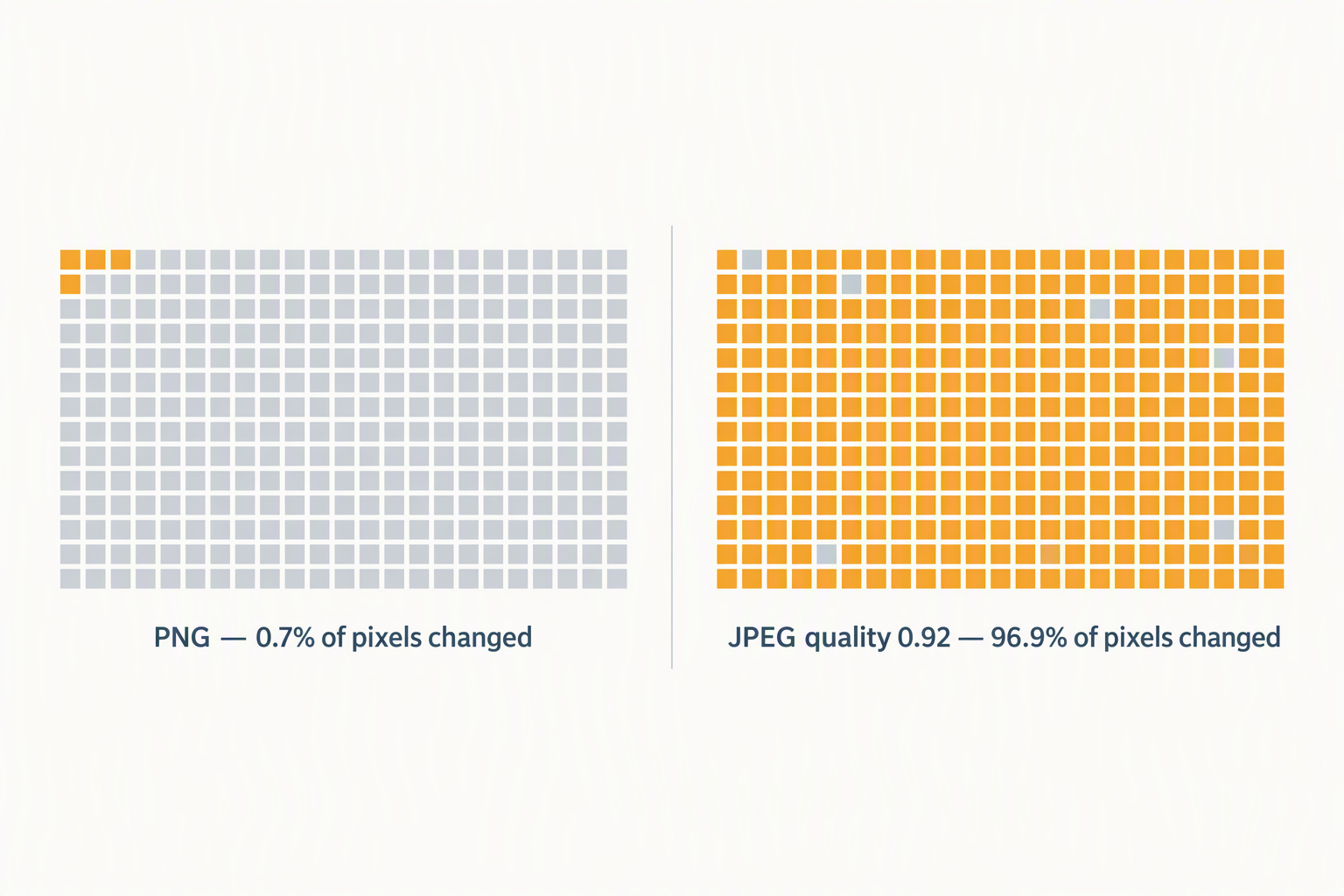
- The re-encode touches far more pixels than the edit does. Identical repair, two ways of writing it out: as PNG, 0.7% of pixels changed. As JPEG at quality 0.92, 96.9% of pixels changed. Even at quality 0.95, on a smooth image, 89.7% of pixels moved.
- Re-saving does not keep adding damage. At the same quality setting the first JPEG save introduced 2.30 of error per channel and the fifth had moved it to 2.31. The first save does nearly all of it; the rest is rounding. PNG stays at exactly 0.000 through five generations.
None of that means removal is a bad idea. It means "does it reduce quality" has three answers, and the one you care about depends on whether the mark sat over your subject or over empty sky, and on how the result was written to disk.
Three claims, and the one phrase that changes them
We pulled the public HTML of three watermark removal sites on September 29, 2026 and read what each one promises about quality.
- One says its algorithm "ensures the original image quality remains 100% intact—no blur, no pixelation."
- Another says the mark "is removed without reducing the quality of the rest of the image, so your photo still looks natural," and elsewhere that it "aims to preserve detail, lighting, and sharpness."
- The third says it works "while preserving the image quality to elevate your visuals," and, describing the same step, that it "preserves the quality for the rest of the image."
Two of the three attach the same qualifier: the rest of the image. Read literally, that is a careful and defensible statement — it says nothing about the region the mark occupied, which is the only region any tool actually has to rebuild. The third makes the unqualified version, and the unqualified version cannot survive contact with arithmetic: whatever ends up where the mark was, it is not the original pixels, because the original pixels were overwritten the moment the mark was drawn.
That is not a knock on any of them. It is the reason the question needs splitting into parts before it can be answered at all.
Loss 1: the hole, and how much bigger it is than the mark
We drew three marks on a 1200 × 800 scene — a small corner logo, a centre lockup over detailed ground, and the same lockup tiled across the frame — and counted, pixel by pixel, how much of the picture each one actually covers. Then we measured the smallest rectangle around it, because that is what a brush or an automatic box tends to operate on.
| Mark | Pixels covered | Share of frame | Rectangle around it | Rectangle ÷ mark |
|---|---|---|---|---|
| Small corner logo over flat sky | 690 | 0.07% | 0.09% | 1.23× |
| Centre lockup over detailed ground | 6,764 | 0.70% | 1.58% | 2.24× |
| Same lockup tiled across the frame | 84,617 | 8.81% | 100% | 11.35× |
The last column is the useful one. A diagonal tile repeated across the frame covers 8.81% of the pixels, but the smallest rectangle containing all of it is the entire frame — 11.35× the area of the mark itself. Anything that works on rectangles must then invent up to eleven times as much picture as was actually covered, which is why tiled marks are the ones that come back looking painted.
Next we filled each hole three ways and compared the result against the original, which we still had. The three fills are deliberately generic: one flat colour, a blur confined to the box, and a local diffusion that works inward from the rim of the hole, each new pixel taking the average of its already-known neighbours. They are ordinary, non-learned methods of the kind any image program has.
| What fills the hole | Corner over flat sky | Centre over detail | Tiled across the frame |
|---|---|---|---|
| One flat colour, averaged from the surroundings | 1.68 · 41.7 dB | 16.61 · 21.8 dB | 45.72 · 13.6 dB |
| 6 px blur inside the rectangle | 10.45 · 26.0 dB | 18.70 · 21.0 dB | 14.19 · 22.7 dB |
| Local diffusion, working inward from the edges | 1.31 · 43.6 dB | 12.94 · 24.0 dB | 8.41 · 26.0 dB |
Read down the first row and you can see what "difficulty" actually means here. The same flat fill is off by 1.68 over a smooth sky and 16.61 over textured ground — ten times the error, because over sky there is almost nothing to get wrong. The best method in the table still leaves the detailed patch 12.94 away from the original, and its worst single pixel off by 89 levels.
The tiled row carries the second lesson. Painting it out in one colour destroyed 45.72 of error inside the marks and 44.40 everywhere else, because the rectangle was the whole frame. The diffusion fill, which only touches the marks themselves, brought that collateral down to 0.01 — the same repair, a completely different bill for the rest of the picture.
Why a whole-image number hides the patch
Here is the same result scored two ways, and it is the most useful table on this page if you ever have to read a quality claim.
| Mark | PSNR inside the hole | PSNR over the whole file | Gap | Pixels changed |
|---|---|---|---|---|
| Corner logo over flat sky | 43.6 dB | 74.9 dB | 31.3 dB | 0.1% |
| Centre lockup over detailed ground | 24.0 dB | 45.5 dB | 21.5 dB | 0.7% |
| Tiled across the frame | 26.0 dB | 36.5 dB | 10.5 dB | 9.0% |
A 0.7% hole that is wrong by 12.94 of 255 drags the all-pixel average down by almost nothing: the file scores 45.5 dB, a figure any vendor would happily print. The region you actually looked at scores 24.0 dB. Both are correct measurements of the same file. This is why "the rest of the image is unchanged" is the honest way to phrase it and "100% intact" is not — and why the only way to judge a result is to look at the patch, not at a single number for the file.
Loss 2: the file is written again, and that touches everything
This loss has nothing to do with watermarks. It comes from the fact that a repaired image has to be encoded to be saved, and encoders treat the whole frame the same way. To isolate it from the hole entirely, we took a clean, unmarked image and simply saved it, then decoded it and compared.
We ran it on two scenes: one carrying heavy synthetic grain, which is close to a worst case for a lossy codec, and one without the grain, closer to a clean well-exposed photo. The truth for a real photograph is between the two columns.
| Saved as | Pixels changed | Error, grainy scene | PSNR, grainy | Error, smooth scene | PSNR, smooth | Bytes |
|---|---|---|---|---|---|---|
| PNG | 0.0% | 0.00 | lossless | 0.00 | lossless | 1,849,463 → 612,147 |
| JPEG, quality 0.95 | 96.9% / 89.7% | 1.68 | 41.2 dB | 0.89 | 45.1 dB | 431,834 → 158,751 |
| JPEG, quality 0.92 | 97.9% / 90.7% | 2.30 | 38.6 dB | 0.99 | 44.1 dB | 332,504 → 116,759 |
| JPEG, quality 0.85 | 98.7% / 93.1% | 3.58 | 34.4 dB | 1.16 | 42.8 dB | 232,556 → 82,363 |
| JPEG, quality 0.72 | 99.3% / 96.5% | 5.10 | 31.1 dB | 1.45 | 41.1 dB | 140,914 → 56,470 |
| JPEG, quality 0.60 | 99.5% / 98.1% | 5.77 | 30.0 dB | 1.70 | 40.0 dB | 99,022 → 43,629 |
Two things are worth taking away, and neither is "JPEG is bad".
Lossy encoding is not a local edit. Even at quality 0.95 — a setting most people would call visually identical — between 89.7% and 96.9% of pixels came out different from what went in. The edit touched 0.7% of the frame; the save touched essentially all of it. If you want the part you did not edit to stay bit-for-bit what it was, the output format has to be lossless, and that is a choice you can make only if the tool offers it. Our own output format page covers what each choice costs you in file size and transparency.
The magnitude is usually small, and that is the honest counterweight. On the smooth scene, quality 0.92 moved the average channel by 0.99 of 255 — under half a percent of the tonal range. You will not see it. You will see it on the grainy scene at quality 0.60 (5.77), or anywhere the picture is already noisy, or in flat gradients and large areas of one colour, where block structure shows up first. So: small in the mean, uneven in where it lands, and never zero.
One more caveat specific to this measurement: JPEG has no alpha channel. If the image you are working with has transparency, writing it to JPEG discards that outright, which is a change no error figure captures. That case is covered on the format page.
Loss 3: does saving it over and over pile up?
The common fear is that each save compounds. We saved the same file five times in a row at the same setting and measured both the total error against the original and the error added by each additional pass.
| Save | 1st | 2nd | 3rd | 4th | 5th |
|---|---|---|---|---|---|
| JPEG 0.92 — cumulative error | 2.303 | 2.305 | 2.306 | 2.306 | 2.306 |
| JPEG 0.92 — added by this save | 2.303 | 0.017 | 0.006 | 0.003 | 0.001 |
| JPEG 0.92 — pixels changed by this save | 97.9% | 2.1% | 0.7% | 0.4% | 0.1% |
| JPEG 0.72 — cumulative error | 5.105 | 5.105 | 5.105 | 5.105 | 5.105 |
| PNG — cumulative error | 0.000 | 0.000 | 0.000 | 0.000 | 0.000 |
Re-encoding at the same quality converges on a fixed point almost immediately. The first JPEG save did 2.303 of damage and the next four added 0.027 between them. At quality 0.72 the file reached its fixed point on the second save and did not move again. PNG is exactly zero at every generation.
The practical version: repeated saving at the same setting is not ten times worse than saving once, because the second pass is re-encoding something the first pass already made easy to encode. What does compound is changing things between saves — re-editing, resizing, or dropping the quality — and that is the habit worth avoiding.
How to check any tool yourself, in about a minute
You do not have to take a vendor's word, or ours. These five checks work on any tool, including ones that run in your browser.
- Keep the original. Without it, no comparison is possible and every claim becomes unfalsifiable. This is the single step that matters most.
- Compare pixel dimensions first. If the output is smaller than the input, resolution was lost before any quality question arises. Some tools resize on the way in: this one caps the longest edge at 1800 px, and one of the sites above states an input limit of 5,000 × 5,000 px on its upload widget. Both are written down on our file size page.
- Look at the region at 100% zoom, not the thumbnail. Everything on this page says the damage is local. A whole-image score, or a scaled-down preview, will hide exactly the part you need to see.
- Check what it was saved as. If the output is a JPEG noticeably smaller than your input was, the whole frame was re-encoded, not just the edited part. PNG in, PNG out is the only combination that leaves the untouched pixels bit-identical — measured above as 0.0% of pixels changed.
- Do not expect metadata to carry your proof. EXIF, XMP and PNG text blocks are all dropped when a browser re-saves an image; that is measured on the metadata page. Whatever proves the picture is yours has to live outside the file.
One thing you should not expect to be able to check: how good a specific product's fill is, from the outside, without the original. That comparison needs the before and after, and only you have the before.
What to do when quality actually matters
- Pick the output format deliberately. PNG leaves everything you did not touch bit-identical; JPEG at a high setting moves around 1–2 levels per channel on a clean photo and more on a noisy one. If the tool lets you choose, choose. Our output format page has the trade-offs per format.
- Expect the patch, not the file, to be the weak point. A 0.7% hole at 24.0 dB and a whole file at 45.5 dB are the same image. Judge the repair where it happened.
- Prefer a smaller footprint. The corner logo covered 0.07% of the frame; the tiled version covered 8.81% and forced a rectangle 11.35× its own size. Coverage is the variable you control before you ever open a tool.
- Do not round-trip through a lossy format on the way. Converting to JPEG, editing, and converting again stacks two avoidable passes. Edit once, save once.
- If the image came from a camera, keep the original file, not a screenshot of it. Screenshots, messaging apps and social uploads all re-encode, and each one is a lossy pass you did not ask for.
And if you are on the other side of this — putting a mark on your own work — the same measurements read as a price list rather than a warning. That is written up from the opposite direction on the watermark survival page.
What nobody in this space writes about
The search side of this is unusually blunt. On September 29, 2026 we asked Google's own autocomplete what people type around this topic, and the completions it returns are the phrases real users keep typing: remove watermark without losing quality, remove watermark without reducing quality, watermark remover no quality loss, watermark remover original quality, remove image watermark without losing quality. People are not asking whether removal is possible. They are asking whether it costs them anything, and the category answers with adjectives — "high quality", "HD quality", "original quality" — rather than with a measurement.
The three sites we checked all make a quality promise; none of them publishes a number, a test image, or a method you can repeat. Two of the three quietly scope their promise to the rest of the image, which is the careful version, and none of them explains why the scope is there. The gap is not that the claims are false — it is that the interesting half of the answer, the hole itself, is exactly the half nobody writes down.
The intuition is not new either. A question on a public design forum asks how to take an object covering about 20% of a picture out of a high-resolution version by filling it with "logical" pieces from smaller, clean copies of the same scene: "Is there a way, software, website or etc. to remove the object from my big picture, filling in with 'logical' pieces from the smaller images? The goal here is to have an image without that object and the best possible resolution in the end." The asker adds that the object is fully opaque and not a watermark — but it is the same problem, and the phrasing gives the answer away: once something is covering those pixels, the only question left is where the replacements come from.
Frequently asked questions
Does removing a watermark reduce image quality?
Yes, in three separable ways. The pixels under the mark are overwritten and have to be rebuilt — our best ordinary fill left that region 12.94 of 255 away from the original over detailed content (24.0 dB). Separately, saving the result re-encodes the whole frame: as PNG, 0.7% of pixels changed; as JPEG at quality 0.92, 96.9% changed. And the whole-file score for that same image was 45.5 dB, which is why the loss is easy to miss.
Is "no quality loss" true?
It depends entirely on the scope of the sentence. Two of the three sites we checked phrase it as "the rest of the image" is unaffected, and measured that way it holds: with PNG output, the pixels outside the edit were bit-identical. The unqualified version — "100% intact" — cannot be true for the region the mark covered, because those original pixels no longer exist in the file.
Does saving as JPEG make it worse than saving as PNG?
For the untouched pixels, yes. PNG changed 0.0% of the pixels in our clean-image test; JPEG at quality 0.92 changed 90.7% on a smooth scene and 97.9% on a grainy one. The average size of the change is small on clean images (0.99 of 255) and larger where the picture is already noisy (2.30). If you want the rest of the frame preserved exactly, the output has to be lossless.
Does repeatedly saving an image keep degrading it?
Not much, if the setting stays the same. Five consecutive JPEG saves at quality 0.92 went from 2.303 to 2.306 total error — the first save did essentially all of it, and the remaining four added 0.027 between them. At quality 0.72 it stopped changing after the second save. PNG stayed at exactly 0.000.
Why does the repaired area look worse than the numbers suggest?
Because whole-image scores dilute local damage. A hole covering 0.7% of the frame at 24.0 dB produces a whole-file score of 45.5 dB — a 21.5 dB gap between how the file measures and how the patch looks. Always judge a repair at 100% zoom on the region itself.
Does a bigger watermark mean more damage?
Yes, and faster than its area suggests. Our corner logo covered 0.07% of the frame and its rectangle was 1.23× that; the tiled version covered 8.81% but its rectangle was the whole frame, 11.35× the mark's own area. Painting the tiled version out in one colour damaged 44.40 of 255 across the picture outside the marks.
Can a tool restore the original pixels under a watermark?
No. Those pixels were replaced when the mark was drawn, and nothing in the file remembers them. Whatever fills the space is a reconstruction from the surrounding picture, from another copy of the image, or from a model's guess. That is why the original is worth keeping.
Does the removal change the image's resolution or metadata?
It can. Some tools resize on input; this one caps the longest edge at 1800 px, which is covered on the file size page. Metadata is a separate loss: EXIF, XMP and PNG text blocks are dropped when a browser re-saves an image, measured on the metadata page.
How can I tell whether a tool processed my image locally or uploaded it?
You can check any tool yourself rather than taking its word for it, including by watching the browser's own network log while it runs. Three methods that work on any site are on the verification page.
Scope of these measurements: Chrome 153 headless on Windows, September 29, 2026. Test images are synthetic 1200 × 800 scenes built on a canvas from a fixed random seed: an opaque gradient upper band, an opaque textured lower band, and optionally uniform per-pixel noise of ±22 levels per channel on the lower band (the "grainy" scene) or none (the "smooth" scene). Marks are text glyphs drawn with white fill and a dark outline; hole sizes are counted as pixels differing from the original by more than 6 levels summed across channels. Errors are mean absolute error per channel on 0–255; PSNR is computed from mean squared error over the same pixels. The three fills tested are generic and non-learned: a single averaged colour, a 6 px blur confined to the rectangle, and a diffusion that propagates inward from the rim of the hole taking the mean of already-known neighbours. They are stand-ins chosen to bracket ordinary reconstruction, not the output of any product — we make no claim here about how any specific tool, including this one, fills a hole. The competitor statements are quotations from public page HTML retrieved on September 29, 2026 and may change; the autocomplete phrases are Google suggestions retrieved the same day, which show phrasing and not search volume. The forum quotation is from a public design Q&A thread and is attributed as a quotation. We did not test learned or generative inpainting, we did not test crop-and-reframe, and we used one browser version on one machine.