File size
A 10 MB limit measures your bytes, not your resolution
There is no pixel count that a 10 MB cap corresponds to, and anyone who tells you one is guessing. We encoded three images at exactly 4000 × 3000 — identical pixel count, identical dimensions — and got 193,941 bytes, 3,837,016 bytes and 10,533,007 bytes. That is a 54× spread at the same resolution, because a size cap measures how many bytes the compressor needed, and that depends on what is in the picture and how it was saved. So the useful question is not "how many megapixels can I upload" but "which lever gets my file under the line, and what does that lever cost me". Below: the measurements, the two levers with their measured cost, the number the upload form never shows you, and what the tools in this space actually state.
All figures on this page were measured on September 28, 2026 in Chrome 153 (headless, Windows), by building images on a canvas and encoding them with canvas.toBlob. "MB" on this page is always 1,048,576 bytes, because that is the unit the code we quote below uses. Test images are synthetic, which is stated where it matters.
The answer, first
If your file is rejected for being too large, the fastest fix is almost never "make the picture smaller" and almost always one of these three, in this order:
- If it is a PNG, re-encode it. A 4000 × 3000 PNG of nothing but a smooth gradient measured 11,275,414 bytes — already over a 10 MB cap with almost no detail in it. The same image as JPEG at quality 0.92 was 193,941 bytes.
- If it is already a JPEG, drop the quality one step. On photo-like content, quality 0.92 → 0.80 cut the file by 54.0% and moved the average pixel by 4.3 of 255.
- Only then reduce the pixel count. Halving the pixels (24 MP → 12 MP) cut bytes by 56% to 63% in our runs, and it is the only lever that removes detail instead of adding compression noise.
What you should not do is guess a resolution. The same 12 megapixels came out at 0.18 MB or 10.05 MB depending purely on content, so any "you can upload up to X megapixels" rule you have read was measured on somebody else's picture.
Three images, one resolution, a 54× spread
We built three 4000 × 3000 images with deliberately different amounts of detail: a smooth gradient with a few stripes (flat), a soft blob-and-grain composition standing in for a camera photo (photo), and per-pixel random RGB, which is the worst case any compressor can be handed (noise). Each was encoded six ways. Every number below is the real byte length of the resulting blob.
| Encoding | Flat gradient | Photo-like | Per-pixel noise |
|---|---|---|---|
| JPEG q 0.92 | 193,941 B · 286 ms | 3,837,016 B · 1,260 ms | 10,533,007 B · 312 ms |
| JPEG q 0.80 | 147,579 B · 126 ms | 1,766,272 B · 365 ms | 7,643,902 B · 299 ms |
| JPEG q 0.60 | 125,425 B · 149 ms | 827,453 B · 236 ms | 5,355,741 B · 294 ms |
| WebP q 0.92 | 58,054 B · 2,135 ms | 3,751,460 B · 5,567 ms | 10,581,174 B · 6,346 ms |
| WebP q 0.80 | 45,878 B · 1,485 ms | 1,884,838 B · 4,457 ms | 8,247,272 B · 5,504 ms |
| PNG | 11,275,414 B · 533 ms | 25,303,189 B · 1,238 ms | 41,135,913 B · 968 ms |
Read the top row across: 0.18 MB, 3.66 MB, 10.05 MB. The noise image at 12 MP landed 47,247 bytes above a 10 MB cap while the gradient image of the same size sat at under two percent of it. Neither number has anything to do with resolution.
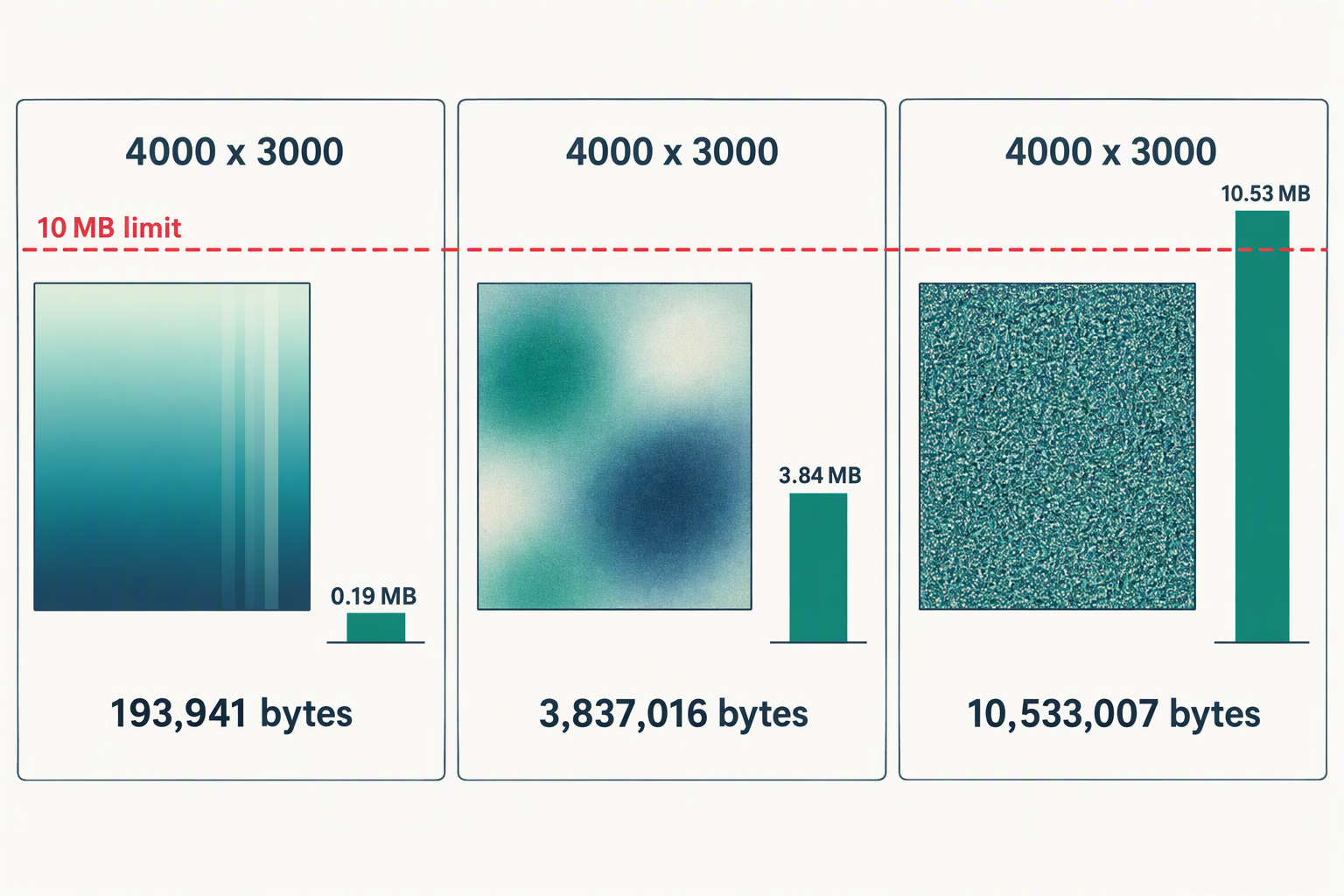
Read the PNG row and the practical warning appears: PNG is the format most likely to trip a size cap, because it stores pixels without throwing any away. A flat gradient — the single easiest image in the world to compress — still took 10.75 MB as a PNG. Screenshots and exported PNGs are the usual offenders, and they are the easiest to fix.
How many megapixels fit under 10 MB
You can turn those measurements into an answer, as long as you say which kind of picture it applies to. Dividing 10,485,760 bytes by the measured bytes-per-megapixel gives the pixel count that would just fit:
| Encoding | Flat gradient | Photo-like | Per-pixel noise |
|---|---|---|---|
| JPEG q 0.92 | ~649 MP | 32.8 MP | 11.9 MP |
| JPEG q 0.80 | ~853 MP | 71.2 MP | 16.5 MP |
| JPEG q 0.60 | ~1,003 MP | 152.1 MP | 23.5 MP |
| WebP q 0.80 | ~2,743 MP | 66.8 MP | 15.3 MP |
| PNG | 11.2 MP | 5.0 MP | 3.1 MP |
A fairly ordinary 12 MP phone photo has nothing to fear from a 10 MB cap at JPEG quality 0.92 — it fits with roughly 2.7× to spare. A 12 MP screenshot saved as PNG does not fit at all. That is the whole point: the number that decides whether you get in is the format and the content, not the camera.
WebP is not a free win, and AVIF may not exist at all
The reasonable assumption is that a newer format is smaller. Measured here, that held for one of the three images:
- Flat gradient: WebP was 70.1% smaller than JPEG at q 0.92 and 68.9% smaller at q 0.80.
- Photo-like: WebP was 2.2% smaller at q 0.92 — and 6.7% larger at q 0.80.
- Noise: WebP was 0.5% larger at q 0.92 and 7.9% larger at q 0.80.
And it cost real time: at 12 MP, WebP took 4.4× to 20.3× as long to encode as the JPEG at the same quality setting, up to 6,346 ms for a single image. On content that is already hard to compress, switching to WebP buys you nothing and costs seconds.
One more trap, which the browser reports dishonestly. We asked the same canvas for image/avif and got back a blob whose type was image/png. canvas.toBlob does not throw when it cannot honour a format — it silently writes PNG. If a tool or a snippet of your own "converts to AVIF" and the file does not shrink, check the blob's type before believing the label. JPEG, PNG and WebP were all honoured in this Chrome; AVIF was not.
What each lever actually costs
Getting under a cap always costs something. There are only two levers, and they cost different things.
Lever one: cheaper pixels. Lower the quality setting. Nothing about the image's dimensions changes; each pixel is stored with less information. We measured the damage by decoding the re-encoded file and comparing it pixel by pixel against the original canvas.
| Content | Quality | Bytes saved | Mean channel difference | Max channel difference |
|---|---|---|---|---|
| Flat gradient | 0.80 | 23.9% | 0.593 | 9 |
| Flat gradient | 0.60 | 35.3% | 0.984 | 15 |
| Flat gradient | 0.40 | 42.2% | 1.288 | 23 |
| Photo-like | 0.80 | 54.0% | 4.251 | 77 |
| Photo-like | 0.60 | 78.4% | 4.974 | 97 |
| Photo-like | 0.40 | 88.1% | 5.372 | 133 |
| Per-pixel noise | 0.80 | 27.4% | 46.821 | 251 |
| Per-pixel noise | 0.60 | 49.2% | 49.617 | 255 |
| Per-pixel noise | 0.40 | 62.7% | 53.140 | 255 |
The same quality step is not the same trade twice. On photo-like content, dropping to 0.80 halved the file for a mean change of 4.3 out of 255 — a fraction of a percent. On content that is already noise, the identical step saved only 27% and moved the average pixel by 46.8, because there was no structure for the encoder to preserve in the first place. The noise rows are a worst case, included so the range is honest rather than flattering; a real photograph sits closer to the middle rows.
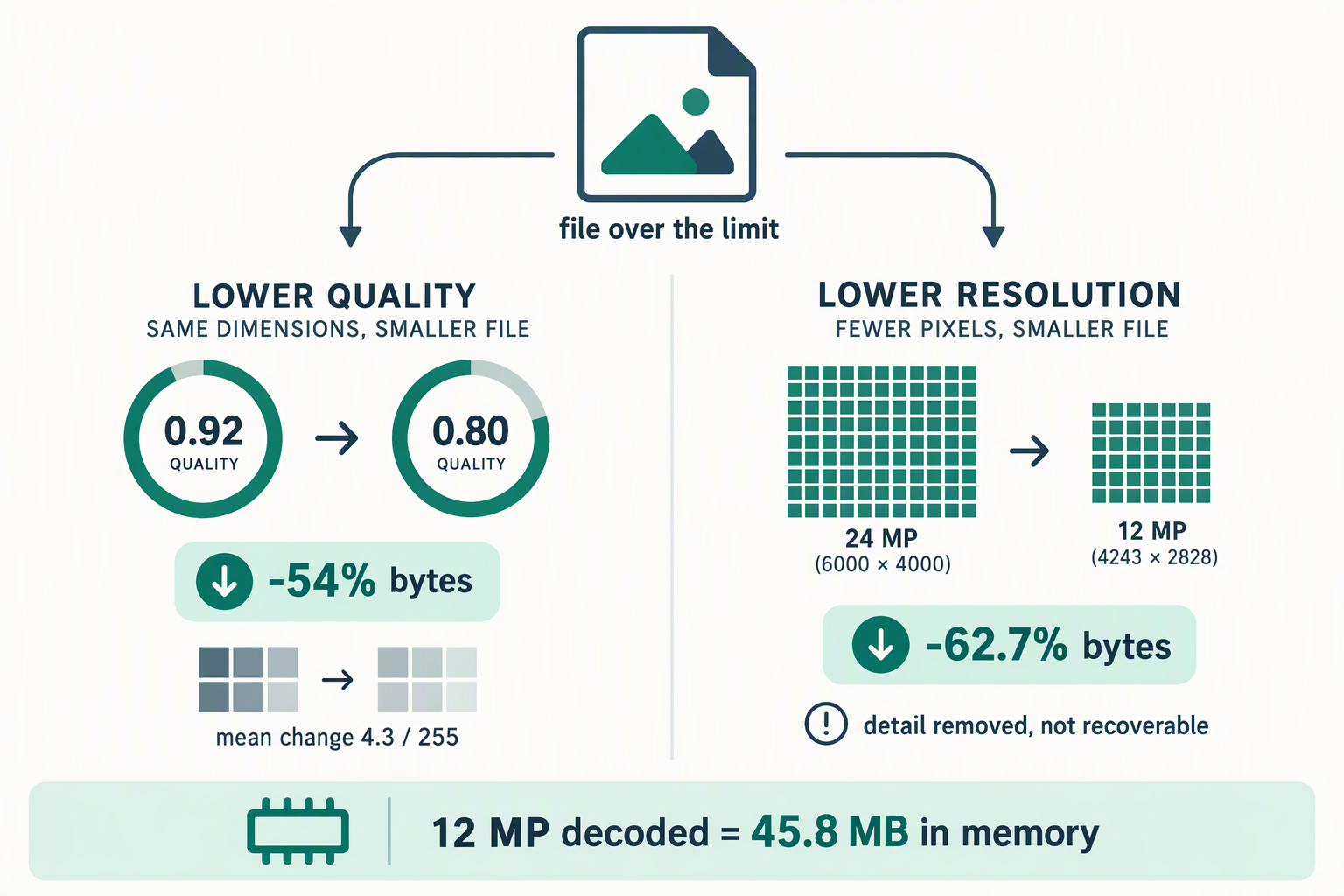
Lever two: fewer pixels. Reduce the dimensions instead of the quality. This changes the picture in a different way: it removes detail rather than adding artefacts, and unlike re-encoding it cannot be undone, because the discarded pixels are gone. We halved the pixel count from 24 MP to 12 MP and re-encoded at the same quality:
| Content | 24 MP | 12 MP | Bytes saved |
|---|---|---|---|
| Photo-like | 7,552,986 B | 2,814,204 B | 62.7% |
| Per-pixel noise | 21,019,459 B | 9,256,769 B | 56.0% |
Cutting half the pixels removed more bytes than any single quality step did, on both contents. Which lever you should reach for depends on what the picture is for: if you need the full resolution in the final file, spend quality; if the image only ever needs to be seen at screen size, spend pixels, because that costs you detail you were not going to use anyway.
The number the upload form never shows: decoded size
A size cap is checked against the file’s bytes on disk. Once the image is open, the browser is holding something far larger and completely different: one decoded RGBA pixel is 4 bytes, so the working memory is pixels × 4, regardless of how well the file compressed. We allocated these buffers and measured them:
| Dimensions | Megapixels | Decoded RGBA |
|---|---|---|
| 1000 × 1000 | 1.0 MP | 3.8 MB |
| 2000 × 2000 | 4.0 MP | 15.3 MB |
| 4000 × 3000 | 12.0 MP | 45.8 MB |
| 6000 × 4000 | 24.0 MP | 91.6 MB |
That is why a "10 MB" file can still make a browser tab feel heavy. The 12 MP noise image that just squeezed over the cap at 10.05 MB on disk becomes 45.8 MB of decoded pixels the moment it is opened, and a tool that keeps a copy of the original alongside the working copy needs that twice. When a page slows down or a tab dies on a large image, this is the number to look at, not the file size.
What the tools in this space actually state
We fetched three pages on September 28, 2026 and looked for a stated size limit.
- phototune.ai states one twice. The page copy reads "Maximum file size is 10 MB." and its error message reads "Your image is too large. Max size is 10 MB." But the inline script on the same page declares
const maxSizeBytes = 25 * 1024 * 1024; // 25MBand then testsif (file.size > maxSizeBytes). The number compared against is 25 MB; the number shown to you is 10 MB. - unwatermark.ai — we found no file size figure anywhere in the page HTML we fetched (21,294 bytes). We are not claiming it has no limit, only that it states none where we looked.
- watermarkremover.io — same result on the page we fetched (50,740 bytes after redirects): no size figure in the HTML.
This is the ordinary state of things for this query, and it is the reason a size cap is confusing in practice: one tool prints a number that its own code does not use, and the other two print nothing at all. You find out where the line is by hitting it. (A client-side constant can also be changed by its owner at any time; the observation above is from the date given, and the quoting is limited to what is needed to make the discrepancy visible.)
The cap this site uses is a different kind
MarkVanish does not check file size at all. Two things are true of the tool instead, both visible in the code it ships:
- The file pickers accept image MIME types only — JPEG, PNG, WebP, HEIC and HEIF — so a non-image is never offered in the dialog.
- When an image loads, the working canvas is scaled so that the longest edge is at most 1800 pixels. A 4000 × 3000 photo is worked on at 1800 × 1350, and that is the size the result is saved at.
So the practical consequence is the reverse of an upload cap: feeding this tool a 24 MP original does not buy you a 24 MP result, because the image is brought down to 1800 pixels on the long edge before anything happens. If you are going to shrink the file anyway to satisfy some other tool's limit, shrinking it here costs you nothing you were going to keep — and if the watermark you want gone is small and thin, shrinking before you mark it can make it harder to select, which is the one case where you should leave the pixels alone and lower the quality instead.
How to get under a cap in four steps
- Read the real byte count, not the rounded one. File properties on Windows and Get Info on macOS both show it; the cap is compared in bytes, and "10 MB" means 10,485,760 of them. A file showing 10.1 MB is over; one showing 9.9 MB is not.
- Check the format before the size. If it is a PNG, TIFF or BMP, re-encode to JPEG at quality 0.92 first. That single step took our 12 MP test image from 10.75 MB to 0.18 MB.
- If it is still over, step quality down once — 0.92 to 0.80 — and re-check. Measured, that removed 23.9% to 54.0% of the bytes depending on content.
- Only then reduce dimensions, by the smallest amount that gets you under. Halving the pixels removed 56% to 63% of the bytes, which is more than any quality step, but it is irreversible.
Whatever route you take, keep the original. Every step above is a one-way conversion, and none of them can be undone from the saved file.
What this site does and does not do
- It does open JPEG, PNG, WebP, HEIC and HEIF images in your browser, and it processes them locally with no upload. The verification page shows how to confirm that yourself.
- It does scale any image down to a maximum long edge of 1800 pixels on load, and it saves the result at that size.
- It does not refuse a file for being large, because there is no size check in it. The practical limits are your browser's memory and the decoded sizes in the table above.
- It does not offer a quality selector on the home tool: output is PNG. The output format page covers what that means for size, and the format page covers what can be opened in the first place.
- It does not do batch work, so a folder of oversized images is one file at a time.
Frequently asked questions
How many megapixels can I upload to a 10 MB watermark remover?
There is no single answer. Measured at 12 MP, a JPEG at quality 0.92 came out at 0.18 MB for a smooth gradient, 3.66 MB for photo-like content and 10.05 MB for per-pixel noise. Working backwards from those measurements, roughly 33 MP of photo-like content fits under 10 MB at q 0.92, about 12 MP of very noisy content does, and about 5 MP fits if the file is a PNG.
Why is my 8 megapixel photo rejected when a 20 megapixel one was accepted?
Because the cap counts bytes and your file has more of them per pixel. A noisy, detailed, or already-heavily-edited image compresses poorly; a clean, smooth one compresses extremely well. Saving the 8 MP file as JPEG instead of PNG, or at quality 0.80 instead of 0.92, will usually change the outcome immediately.
Does converting to WebP always make the file smaller?
No. In our measurements it was 70% smaller on a smooth gradient, 2.2% smaller on photo-like content at q 0.92, and up to 7.9% larger on content that was already hard to compress — while taking 4.4 to 20.3 times as long to encode. Try it and measure; do not assume.
Is it better to lower the quality or to shrink the image?
Shrinking saved more bytes in our runs — halving the pixel count cut 56% to 63%, versus 23.9% to 54.0% for a quality step — but it is permanent and it costs resolution. Lower the quality if you need the full pixel dimensions in the result; reduce dimensions if the image only ever needs to be viewed at screen size.
Will shrinking my image make the watermark harder to remove?
It can. A thin or small mark loses pixels along with everything else, and once it is only a few pixels wide there is less of it to select and less surrounding detail to reconstruct from. If the mark is fine text or a thin outline, lower the file's quality instead of its dimensions.
My image is 10.05 MB. Is that actually over a 10 MB limit?
Yes, if the limit is 10 × 1,048,576 = 10,485,760 bytes. Our 12 MP noise JPEG was 10,533,007 bytes, which is 47,247 bytes over. Rounding in file managers hides exactly this case: a file displayed as "10 MB" can be either side of the line.
Does this site have a file size limit?
No byte limit is enforced. The file picker accepts image types only, and any image is scaled so its longest edge is at most 1800 pixels before processing, which is also the size the result is saved at.
Why does a small file still make my browser slow?
Because of decoded size, not file size. An opened image occupies roughly 4 bytes per pixel: 12 MP is 45.8 MB and 24 MP is 91.6 MB of decoded data, no matter how small the file was on disk.
Does the tool support AVIF?
Not as an output from this browser's canvas encoder. Asking for image/avif returned a blob typed image/png — a silent fallback rather than an error. JPEG, PNG and WebP were all produced correctly.
Does removing a watermark change my file's metadata?
Yes, and not because of the watermark. Re-encoding rebuilds the container, so EXIF, XMP and PNG text chunks do not survive. That is measured in detail on the metadata page.
Scope of these measurements: Chrome 153 headless on Windows, September 28, 2026, encoding with canvas.toBlob. The three test images are synthetic and were chosen to span the compressibility range; a real photograph will land inside that range, not outside it, but we did not measure real camera files, and the "photo-like" figure is a stand-in, not a camera original. We did not measure HEIC or HEIF input, progressive or chroma-subsampled JPEG, or any server-side limit, and only one browser version was used. The competitor observations come from the public HTML of each site on the date given and can change without notice. ICC colour profiles are untested here and no claim is made about them.